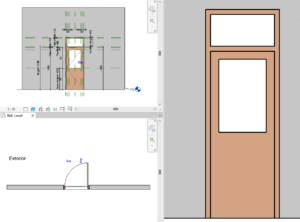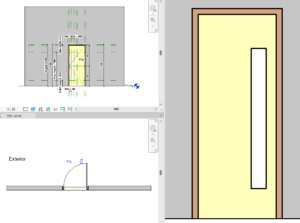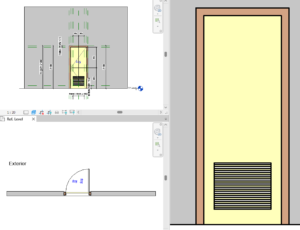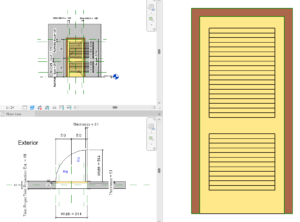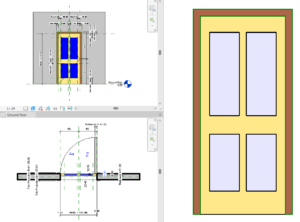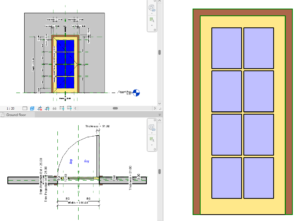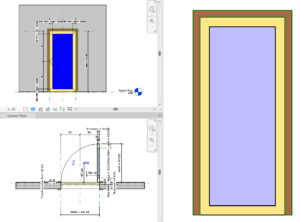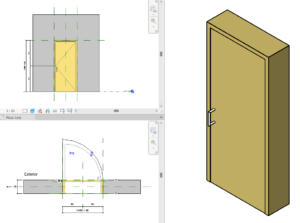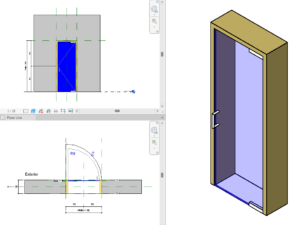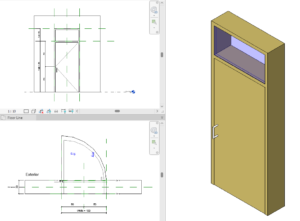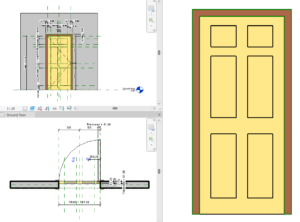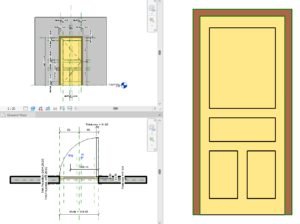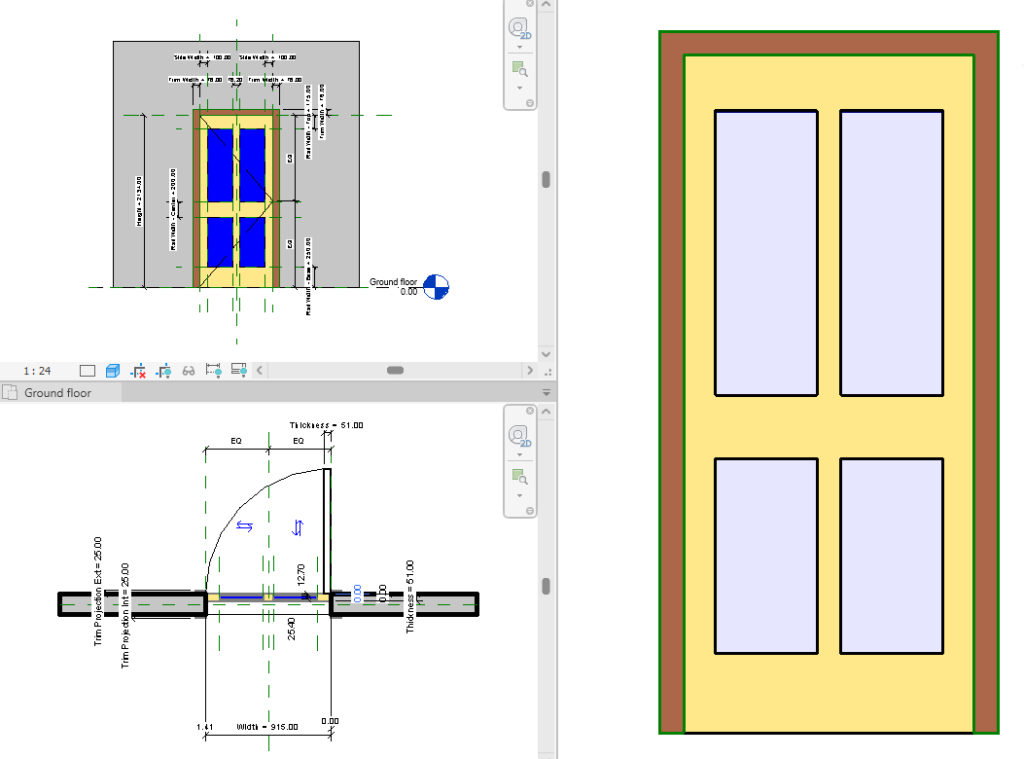
Download high-quality, fully parametric Revit 20 Door Single Shutter with Glass 3 families for your architectural projects. These RFA files feature easily adjustable dimensions, materials, and hardware visibility, making them perfect for any residential or commercial BIM model.
How to Use a Revit Family File: 2 Easy Methods
If you’ve just downloaded a free Revit family from our library, you might be wondering how to actually get it into your project. Good news — it’s simple. There are two methods you can use to load any Revit family file (.rfa) into your model, and we’ll walk you through both step by step.
What Is a Revit Family File?
A Revit family file (with the extension .rfa) is a component — like a door, window, furniture piece, or fixture — that you can insert into any Revit project. Once loaded, it behaves like a native Revit element and can be placed, scheduled, and tagged just like anything else in your model.
Method 1: Open the File and Load It Into Your Project
This method works best when you already have the family file open on your screen.
- Open the downloaded .rfa file directly in Revit.
- With the family open, go to the Modify | Create tab (or the ribbon shown for family files).
- Click Load into Project (or Load into Project and Close).
- If you have multiple projects open, select the one you want to load the family into.
- The family is now available in your Project Browser, ready to place.
This approach is quick if you’re previewing a family before deciding where to use it.
Method 2: Insert and Load the Family From Within Your Project
This method is ideal when you’re already working inside your project and just want to bring in a new family without switching windows.
- Open your Revit project.
- Go to the Insert tab on the ribbon.
- Click Load Family.
- Browse to the folder where you saved the downloaded .rfa file.
- Select the file and click Open.
- The family will now appear in the Project Browser, organized under its correct category (e.g., Doors, Furniture, Casework).
This is the most common workflow for adding families to an active project, especially when working with libraries of downloaded content.
Which Method Should You Use?
| Situation | Recommended Method |
|---|---|
| You just downloaded the family and want to inspect it first | Method 1: Open and Load |
| You’re already working inside your project | Method 2: Insert and Load Family |
| You’re loading multiple families at once | Method 2: Insert and Load Family |
Both methods achieve the same result — the family becomes available in your Project Browser, ready to be dragged into your model.